 LogiShield Security
 WordPress plugin by

LogiShield Security
A login plugin for WordPress, version 1.0.0, built by newWebber. It adds a six-digit authenticator code for each person who turns it on, and a second login address you choose.
The listing on WordPress.org also talks about passkeys, backup codes, email codes, limit login, and temporary links. Several of those lines are marked “cooking” in the readme. This manual follows the dashboard and the code that actually ship in 1.0.0.
Published 28 February 2026. Listing updated 14 March 2026. Tested up to WordPress 6.9. License GPL v2 or later. Plugin page: wordpress.org/plugins/logishield-security.
What version 1.0.0 ships
| On the dashboard | You can use it |
|---|---|
| Two-factor authentication | Yes. Each user opts in from their own profile. The code is TOTP: 6 digits, a new one every 30 seconds. |
| Custom login URL | Yes. You type a slug and press Save Changes. WordPress serves the normal login form at that address. |
| Limit Login Attempts | No. The card is labeled Coming soon. There is no threshold, timer, email, or log. |
| Temporary Login Links | No. The card is labeled Coming soon. It does not create a guest link. |
/wp-login.php still opens the login form. Treat the authenticator code as the lock.
Requirements
| Need | Detail |
|---|---|
| WordPress | 5.0 or newer. Tested up to 6.9. |
| PHP | 7.4 or newer. The plugin file declares strict types. Older PHP can white-screen the site on activation. |
| Account | An Administrator, or any role with manage_options, to open the menu and save a slug. |
| Phone | An authenticator app if that person turns on 2FA. The plugin does not text a code. |
| Permalinks | The custom address is a rewrite rule. If it 404s, resave permalinks. |
 Install from WordPress.org
- Plugins → Add New Plugin The search box is at the top of that screen.
- Search LogiShield Security The card shows the blue shield and the author newWebber.
- Install Now WordPress downloads the zip into
wp-content/plugins/logishield-security. The button changes to Activate. - Activate Default settings are written, a rewrite rule is added, and permalinks are flushed. A shield item appears in the left admin menu.
The direct file for version 1.0.0 is logishield-security.1.0.0.zip.
Upload the zip yourself
- Plugins → Add New Plugin → Upload Plugin Choose the zip you downloaded.
- Install Now If a folder with the same name already exists, WordPress stops and asks you to replace it.
- Activate Plugin You land back on the Plugins list. That row now has Settings and Deactivate.
FTP or SFTP
Upload the folder logishield-security into wp-content/plugins/. The main file has to stay at logishield-security/logishield-security.php. Renaming the file or the folder means WordPress will not list the plugin. Then open Plugins in wp-admin and click Activate under LogiShield Security.
Activate, then open the dashboard
Both the Settings link and the left-menu item LogiShield Security open wp-admin/admin.php?page=logishield-security. Only accounts that can manage options see that menu. Editors do not.
On first activation the saved slug is wp-login and the custom-address feature is enabled. That word is also on the reserved list, so the first useful click is to replace it and save. Until a user finishes 2FA, logins behave as they always did.
The dashboard
Click LogiShield Security in the left menu. The heading is “LogiShield Security Dashboard”. The line under it is “Manage your website security settings.”
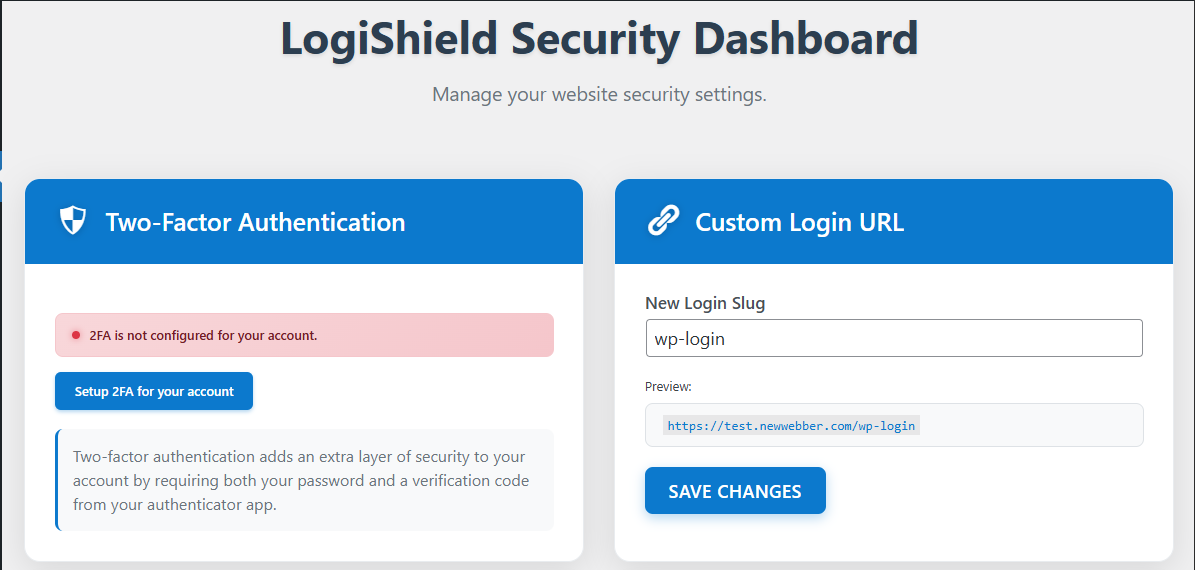
Two-factor card
| You click | What happens |
|---|---|
| Pink line, “2FA is not configured for your account.” | Nothing. It is a status for the person who is logged in, not a switch for the whole site. |
| Setup 2FA for your account | A link, not a toggle. It opens your profile at Users → Profile. Setup happens there. |
| Manage your 2FA settings | The same link, after 2FA is already on. It still opens that profile. |
Turning it on for yourself does not enroll editors, shop managers, or customers. Each person repeats the profile steps on their own account.
Login URL card
| You click | What happens |
|---|---|
| New Login Slug | A text field. The placeholder example is my-secure-login. Typing does not change the live site. |
| Preview | The saved address: your home URL plus the slug. It updates when the page reloads after a successful save. |
| Save Changes | Checks the slug, stores it in the option logise_settings, and rebuilds rewrite rules. Success text: “Custom login URL updated successfully.” |
Coming soon cards
Limit Login Attempts and Temporary Login Links are drawn on purpose so you can see the direction of the plugin. They are not broken buttons. There is no form behind either badge.
The readme describes, for later, a failed-attempt threshold, a lockout timer, email notices, logs, and guest links with an expiry and a use limit. None of those controls exist in 1.0.0. Do not promise a contractor a magic link from this release, and do not expect an IP to be banned after repeated guesses.
Also listed as cooking, and not on the profile screen today: email one-time codes, WhatsApp hooks, password reset protected by 2FA, passkeys, trusted devices, and one-click WooCommerce enrollment.
Set a login slug
- LogiShield Security Open the dashboard. Use the card on the right, Custom Login URL.
- New Login Slug Clear
wp-login. Type a word your editors can remember, such asnorth-gate. Spaces become hyphens. Other symbols are stripped. Capitals become lowercase. - Save Changes The green notice says “Custom login URL updated successfully.” The preview becomes
https://yoursite.com/north-gate. - Open that address while logged out You should see the normal WordPress login form. Bookmark it. Do not put the slug in a public menu.
This box only previews the rule. It does not change a site.
Words Save Changes will refuse
wp-admin, wp-login, wp-content, wp-includes, admin, and login. The error is “This slug is reserved by WordPress. Please choose a different one.” The previous slug stays. An empty field is stored as wp-login, which you should replace. Do not reuse a slug that already belongs to a page, post, or product. WordPress can get confused about which thing that address belongs to.
If the new address is a 404
Go to Settings → Permalinks and click Save Changes. Leave the structure as it is. That visit rebuilds rewrite rules. After you save a slug, LogiShield can also show a short warning with the same link.
To stop using the extra address, open Plugins and click Deactivate under LogiShield Security. Rewrite rules are flushed. /wp-login.php is the login again, and the code prompt stops because the plugin is no longer running.
What a visitor hits
Lost-password and other login actions stay on the slug. /north-gate/lostpassword maps to the lost-password screen. A person who has not finished 2FA goes straight to wp-admin after a correct password. A person who has finished 2FA stops on the code screen.
/wp-login.php still works in this version. Bots that already know that address can still reach the form. The second factor is what stops them.
Turn on two-factor authentication
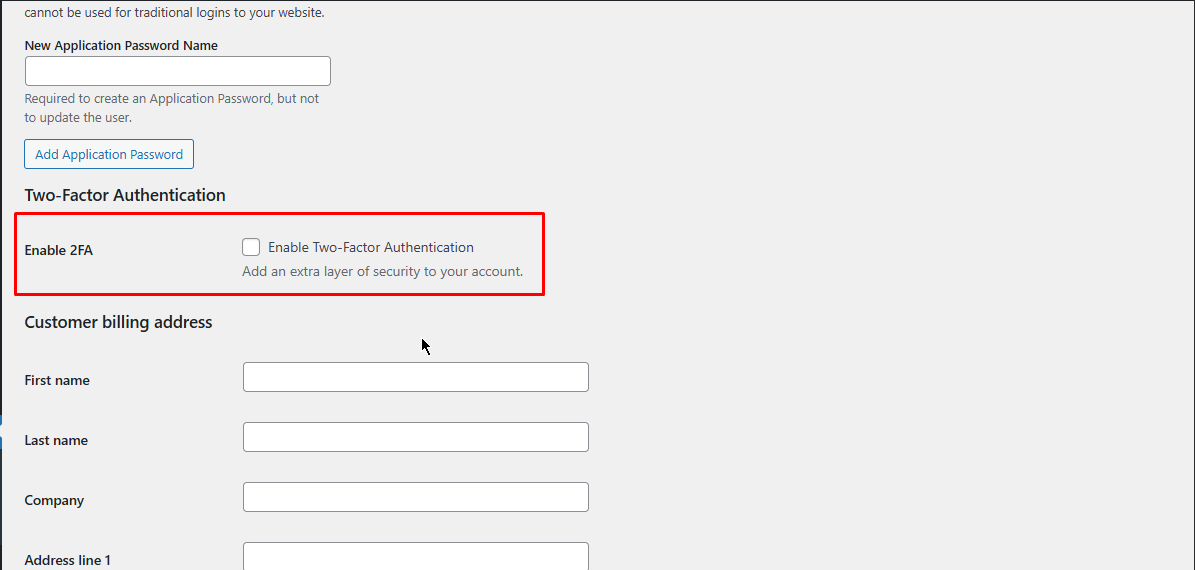
- Setup 2FA for your account On the dashboard. You land on your profile. Scroll to Two-Factor Authentication.
- Enable Two-Factor Authentication Tick the box. The line under it says “Add an extra layer of security to your account.” The tick alone does not turn 2FA on.
- Update Profile, first time LogiShield creates a setup secret and reloads the page. A QR code appears, plus a manual key, the account name
username@Site Name, and the type TOTP. - Scan, then type the 6-digit code Use the app in the next section. If the QR is blank, type the key by hand. Account, key, and type are printed under the image.
- Update Profile, second time With the code filled in. A green notice says “2FA has been enabled successfully!” The profile then says “2FA is configured and active.” The dashboard button changes to Manage your 2FA settings.
To turn it off, uncheck the box and click Update Profile. The secret is deleted. To move to a new phone, turn it off, turn it on, and scan the new QR. The old phone entry stops working. Version 1.0.0 does not print backup codes.
Authenticator apps
Any app that can add a TOTP account works. LogiShield asks for 6 digits and a 30-second period. The label stored in the app is username@Site Name, where Site Name is the title in Settings → General.
| App | What you tap |
|---|---|
| Google Authenticator | Plus, then Scan a QR code. Or enter the setup key and choose time based. |
| Microsoft Authenticator | Plus, then Other account. Scan, or enter the code manually. |
| Authy | Add account, then scan. Authy’s own backup belongs to Authy, not to LogiShield. |
| 1Password or Bitwarden | Add a one-time password and paste the manual key. |
The QR code
The picture is requested from api.qrserver.com only while that setup block is on the profile screen. It is not a background ping. The setup URL contains the secret, the username, and the site name, because the authenticator needs them. newWebber does not receive that request.
If the image is an empty box, the browser or the host blocked QR Server. Use the manual key printed under the image. The page itself notes that the QR picture comes from an external service.
QR Server’s terms and privacy policy cover that one request. If your own privacy policy lists processors, name QR Server as used only while someone is enrolling an authenticator.
Sign in when 2FA is already on
- Open the login form Use the custom slug, or
/wp-login.php. Both work in 1.0.0. - Log In WordPress checks the password first. A wrong password never reaches the code screen. You get the usual WordPress error.
- The code page The title is Two-Factor Authentication. The message names the account: “Enter the 6-digit code from your authenticator app for username.”
- Verify Code A code from the current 30 seconds, or one step either side, signs you in and opens wp-admin. Remember Me is the normal WordPress cookie. It does not skip the code on a later fresh login.
- ← Back to Login Returns to the login form. It does not turn 2FA off.
The code is checked for that user only. An editor who never enrolled is not asked for a code. An administrator who finished setup is. Enroll every administrator. There is no “trust this browser for 30 days” switch in this release.
A wrong code
The form stays put and says “Invalid authenticator code.” Wait for the next code in the app. Set the phone clock to automatic. Confirm you opened this site’s entry, not an older one with the same name. The plugin accepts the current window and one window either side, about 30 seconds of slack.
Lost phone
Version 1.0.0 does not give you a backup code. Set up a second administrator, or know how to reach the host, before you enroll your only admin account.
Another administrator can still sign in
- Users → All Users → that person Or Users → Profile if it is your own account and you are already inside wp-admin.
- Uncheck Enable Two-Factor Authentication Nothing is removed until you save.
- Update Profile The enabled flag and the secret are deleted. The next login is password only.
You are the only administrator
- Hosting file manager, FTP, or SSH Open
wp-content/plugins/. - Rename the folder logishield-security Call it
logishield-security-off. WordPress treats a missing folder as deactivated. - Visit /wp-login.php The code screen is gone. Sign in with the password. Rename the folder back and activate when you are ready to scan a new phone.
Forgotten slug
Use /wp-login.php. In this version that address is still there. After you are in, the dashboard preview shows the slug you saved. If some other plugin or firewall really blocks wp-login.php, renaming the LogiShield folder from the host is the same way back in.
White screen right after Activate
The host is below PHP 7.4. Rename the plugin folder to get the site back, upgrade PHP, then activate again.
Who can do what
| Person | Shield menu | Save a slug | Turn on 2FA |
|---|---|---|---|
| Administrator | Yes | Yes | Own profile, and other users’ profiles |
| Editor, author, shop manager | No | No | Own profile, if they can edit it |
| Subscriber or customer | No | No | Only if that role can edit its profile |
There is no role checklist and no “require 2FA for every administrator” switch. If a contractor has an administrator account, enroll them while the phone is in the room to scan the QR. The secret is stored in that user’s meta on your database: _logise_2fa_secret once active, _logise_2fa_setup_secret while they are still scanning.
WooCommerce
LogiShield does not add a WooCommerce settings tab in 1.0.0. It prints its block on the WordPress user profile, which is why the screenshot shows Customer billing address underneath. Shop managers who can edit their profile follow the same two saves. Checkout, the My Account form, and customer registration are not restyled.
Application Passwords, the block just above 2FA, belong to WordPress core. LogiShield does not change them. Leave that section alone unless you already use application passwords for a script.
Privacy
newWebber states that LogiShield does not phone home. There is no analytics pixel and no remote blocklist. The slug and the on/off flags live in your options table under logise_settings. The authenticator secret lives in that user’s meta on your database. A WordPress personal-data erase removes user meta tied to that account, including the 2FA secret.
The only outside service is QR Server, and only during the moment someone is looking at the setup block on their profile.
Troubleshooting
| You see | Do this |
|---|---|
| “This slug is reserved by WordPress.” | Pick another word. The six reserved slugs are listed above. |
| Custom address is a 404 | Settings → Permalinks → Save Changes. Confirm the slug is not also a page. |
| “Invalid authenticator code.” | Wait for a new code. Set the phone clock to automatic. Scan this site’s QR, not an old entry. |
| QR image is an empty box | Type the manual key. The browser blocked QR Server. |
| No green “enabled” notice | You saved the profile only once. Enter the code and update again. |
| Dashboard still says 2FA is not configured | That card is about the user who is looking at it. Finish your own second save. |
| No LogiShield menu | That account cannot manage options. Ask an administrator. The profile block can still appear. |
| Coming soon card does nothing | That is the 1.0.0 screen. Those tools are not shipped. |
| Locked out by the code | Another admin clears the checkbox, or you rename the plugin folder from the host. |
Questions
I already use a long password. Why add this?
A password can leave through a reused login, a phishing page, or a laptop you no longer control. The authenticator code is created on a device the attacker does not have, and it expires in half a minute.
Will it slow the store?
It does not scan the filesystem and it does not add a script on the public site. Work happens on the login request and inside wp-admin. The dashboard stylesheet loads only on the LogiShield screen.
Does every user get forced into 2FA?
No. Each user enables it. An account that never finished setup still signs in with a password.
Can I change the login address safely?
Yes, as an extra address. It does not edit WordPress core files. Deactivate puts the original login back.
Where is the firewall and the guest link?
On the dashboard as Coming soon. They are not settings you can fill in today.
Changelog
1.0.0. First public release. Two-factor authentication with an authenticator app, a custom login slug with a preview, and the dashboard in the screenshots. Limit login attempts and temporary login links are present as coming soon cards. Text domain logishield-security.
Support
WordPress.org forum: wordpress.org/support/plugin/logishield-security. Product notes: plugin.newwebber.com.
newWebber: hello@newwebber.com, +1 929 350 9209, 101-23 90th St, Ozone Park, NY 11416. newwebber.com.